
Would you like to scan barcodes with JavaScript right off a web page? Think about creating a web application that handles your inventory, ticket validation, or product lookup by merely using the camera of a device. Previously, this was only possible with cumbersome native integrations. Now, in contrast, it is achievable with just a few lines of code.
This tutorial will walk you through a step-by-step process to make this easy for any type of web developer. We are going to see how to enhance your web projects with barcode-reading capabilities, making it more interactive and efficient for your users right in the browser.
Reading Barcode Using the ZXing-JS Library
To build a reliable barcode scanner, we need a library that handles the heavy lifting of camera access and barcode decoding. You will use ZXing-JS (zxing/library), a powerful port of Google’s industry-standard Zebra Crossing (ZXing) Java library. It’s actively maintained and built for modern web environments, making it the perfect choice for this task.
This library provides browser-specific tools that streamline the process. It can list available video devices, render the camera feed, and efficiently decode a wide variety of barcode formats, from UPC and EAN codes to QR codes
Example of Build a Barcode Reader with JavaScript
Let’s build a real-world example of a simple product price checker. For our example, the app will need a few key parts. First, we will include a Video element to show the camera’s view. Next, we need a button for the user to start the scan. Finally, the app will have a space to display the result. When the user clicks the button, the camera will consequently activate. It will then scan a barcode and show the information attached to it.
<!DOCTYPE html>
<html lang="en">
  <head>
    <meta charset="UTF-8" />
    <meta name="viewport" content="width=device-width, initial-scale=1.0" />
    <title>Creating Barcode Scanner using JavaScript -  ZXing-JS</title>
  </head>
  <body>
    <h1>JavaScript Barcode Scanner Using ZXing-JS</h1>
    <p>The camera feed will appear below when you start the scan.</p>

    <div>
      <button id="scan-button">Start Scan</button>
      <button id="reset-button">Reset</button>
    </div>

    <div>
      <video
        id="video"
        width="300"
        height="200"
        style="border: 1px solid gray"
      ></video>
    </div>

    <p>Scanned Code: <strong id="result">-</strong></p>

    <script
      type="text/javascript"
      src="https://unpkg.com/@zxing/library@latest/umd/index.min.js"
    ></script>

    <script type="text/javascript">
      window.addEventListener("load", function () {
        const codeReader = new ZXing.BrowserMultiFormatReader();

        codeReader
          .listVideoInputDevices()
          .then((videoInputDevices) => {
            const sourceSelect = document.createElement("select");
            console.log("Available video devices:", videoInputDevices);

            const scanButton = document.getElementById("scan-button");
            const resetButton = document.getElementById("reset-button");
            const resultElement = document.getElementById("result");

            scanButton.addEventListener("click", () => {
              resultElement.textContent = "Scanning...";
              codeReader.decodeFromVideoDevice(
                undefined,
                "video",
                (result, err) => {
                  if (result) {
                    console.log(result);
                    resultElement.textContent = result.getText();
                    codeReader.reset();
                  }
                  if (err && !(err instanceof ZXing.NotFoundException)) {
                    console.error(err);
                    resultElement.textContent =
                      "Error scanning barcode. Check console.";
                    codeReader.reset();
                  }
                }
              );
              console.log("Started continuous decode from camera.");
            });

            resetButton.addEventListener("click", () => {
              codeReader.reset();
              resultElement.textContent = "-";
              console.log("Reset.");
            });
          })
          .catch((err) => {
            console.error(err);
          });
      });
    </script>
  </body>
</html>
In this example, It will show two buttons and area to show camera output preview. When user clicks on start scan button, it will ask for camera permission if not provided already. Once camera access is provided it will show real-time output to user and scan all incoming feed. Finally, the application displays the scanned barcode data as text.
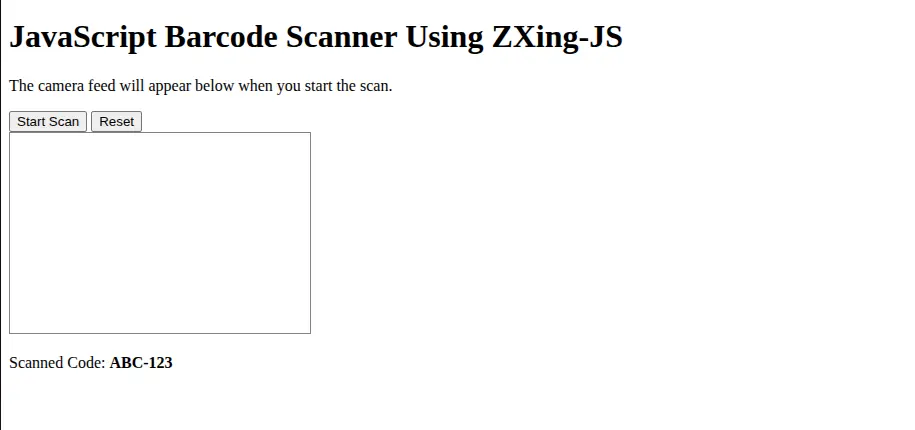
The reset button will reset results for next use of scanning.
Conclusion
You can see how easy it is to add powerful barcode scanning to any web application. With modern libraries, you can create a more engaging and functional tool to solve real-world problems without writing complex code. This functionality opens vast possibilities towards more creative inventory systems, event management applications, and interactive marketing campaigns.
Now that you can read barcodes, you might also need to create them. Learn how in our guide on how to Generate Barcode Using jQuery.