

When your Node.js app grows, simple console.log statements quickly turn into a mess: errors get lost, performance issues hide in the noise, and debugging production issues becomes painful. That’s where using Winston for logging in Node.js makes all the difference.
Winston helps you log structured, meaningful information instead of random strings. You can keep separate logs for errors and requests, store them in files and even send them to external log services. In this guide, you will learn how to use the Winston logger in Node.js through clear, real-world examples.
What Is Winston Logger in Node.js?
Winston is a popular logging library for Node.js. It allows you to create flexible, configurable loggers that write logs to multiple places like: Console, Files, Databases or external log services – thanks to plugins.
You use Winston to track what happens in your application so you can debug issues, monitor behavior, and understand user actions.
Key Features of Winston Logger
Winston stands out because it offers:
- Multiple log levels like error, warn, info, and debug
- Transports to send logs to different destinations
- Custom formats for readable or JSON logs
- Support for production-friendly structured logging
- Easy integration in any Node.js project
Installing Winston in Node.js
Before you start, make sure you have Node.js installed and basic project is already created. If not, you can create using below command:
mkdir winston-example
cd winston-example
npm init -y
Install Winston using NPM:
npm install winstonCreate an index.js file. This file will hold the main node js winston logger example used in this blog.
Setting Up Your First Winston Logger
Now our basic application is ready, we can move forward to create our first Winston logger. For now let’s take an basic example to log information such logged in user ID and order value.
For keeping it simple, we will use index.js file for this:
const winston = require('winston');

const logger = winston.createLogger({
  level: 'info',
  transports: [
    new winston.transports.Console()
  ]
});

function userSignIn(userId) {
  logger.info(`User signed in: ${userId}`);
}

function placeOrder(userId, amount) {
  if (amount <= 0) {
    logger.error(`Order amount invalid for user ${userId}`);
    return;
  }

  if (amount > 500) {
    logger.warn(`High value order by user ${userId}: ${amount}`);
  }

  logger.info(`Order placed by user ${userId}: ${amount}`);
}

userSignIn('user-101');
placeOrder('user-101', 50);
placeOrder('user-101', 800);
placeOrder('user-101', -10);
Output:
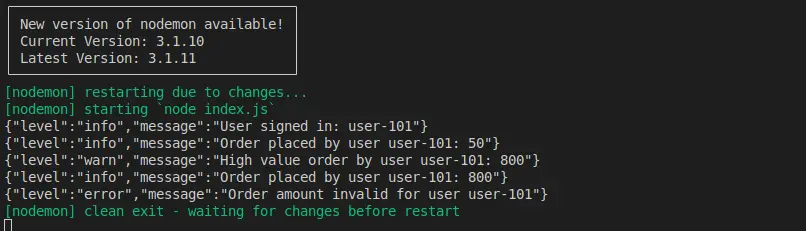
Once your your application, You will see logs in your terminal showing sign-in events, normal orders, high-value orders, and errors for invalid amounts. This single flow will stay with us as we add more Winston features.
Understanding Winston Log Levels
Log levels help you control how detailed your logs are. They are key to any Node.js winston logger example. By default, Winston uses these levels (from most important to least): error, warn, info, http, verbose, debug, silly. When you set level: ‘info’, Winston logs info, warn, error, and http, but ignores debug, verbose, and silly.
Let’s modify our previous example to see how winston log levels works. Modify index.js like below.
const winston = require('winston');

const logger = winston.createLogger({
  level: 'info',
  transports: [
    new winston.transports.Console()
  ]
});

function userSignIn(userId) {
  logger.info(`User signed in: ${userId}`);
}

function placeOrder(userId, amount) {
  logger.debug(`placeOrder called for ${userId} with amount ${amount}`);

  if (amount <= 0) {
    logger.error(`Order amount invalid for user ${userId}`);
    return;
  }

  if (amount > 500) {
    logger.warn(`High value order by user ${userId}: ${amount}`);
  }

  logger.info(`Order placed by user ${userId}: ${amount}`);
}

userSignIn('user-101');
placeOrder('user-101', 50);
placeOrder('user-101', 800);
placeOrder('user-101', -10);
To see debug logs while developing, change the level:
const logger = winston.createLogger({
  level: 'debug',
  transports: [
    new winston.transports.Console()
  ]
});
Now you also see the debug line for each order. This is a simple example of winston logging best practices: use levels to control how noisy your logs are.
Logging with Multiple Winston transports In Node.js
Transports decide where your logs go. The two most popular choices are: Console for development and quick checks and File for history and production debugging. Now let’s take example to print logs into console as well as store it to file.
const winston = require('winston');

const logger = winston.createLogger({
  level: 'info',
  transports: [
    new winston.transports.Console(),
    new winston.transports.File({ filename: 'store.log' })
  ]
});

logger.info('User signed in: user-101');
logger.info('Order placed by user-101: 50');
logger.warn('High value order by user-101: 800');
logger.error('Order amount invalid for user-101');
Run the file again. The logs appear in your terminal and also in store.log. In real life use, you should use date wise log files for better accessibility and easy to manage.
Logging to Files in Node.js with Winston
You already log everything to store.log. Now you will separate error logs into their own file. That makes troubleshooting faster when something goes wrong. Let’s extend that example further with logging messages into multiple files based on it’s type.
const winston = require('winston');

const logFormat = winston.format.printf(({ level, message, timestamp }) => {
  return `${timestamp} | ${level.toUpperCase()} | ${message}`;
});

const logger = winston.createLogger({
  level: 'info',
  format: winston.format.combine(
    winston.format.timestamp(),
    logFormat
  ),
  transports: [
    new winston.transports.Console(),
    new winston.transports.File({ filename: 'store.log' }),
    new winston.transports.File({ filename: 'errors.log', level: 'error' })
  ]
});

// Simple sample log messages
logger.info('Application started successfully');
logger.warn('Memory usage is higher than expected');
logger.error('Failed to connect to database');
logger.info('Background job executed');
Once you run this script, it will create seperate files for store and errors. For larger apps, you can add log rotation using extra Winston transports so files do not grow forever. Even without rotation, separating errors into a dedicated file already helps a lot.
Conclusion
Using Winston for logging in Node.js provides a structured way of understanding what exactly happens inside your application. Instead of random console.log messages, you get well-organized logs with levels, formats, and destinations that match your needs. Conclusion Using Winston for logging in Node.js provides you a well-structured way to understand what happens inside your application. Instead of random console.log messages, you get well-organized logs with levels, formats, and destinations that match your needs.